
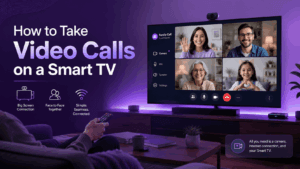
A TV with video conferencing turns a living room, boardroom, or classroom screen into a full meeting device. Instead of huddling around a laptop, participants see each other on a large, shared display while a camera, microphone, and a conferencing app or hardware bar handle the call itself.
The category ranges from consumer smart TVs running a video calling app to dedicated meeting room systems built around a television as the main screen.
This approach fits three groups particularly well: families and individuals who want bigger, more natural video calls at home; small businesses and schools that need an affordable substitute for a dedicated room system; and enterprises that must equip meeting rooms with secure, manageable, camera enabled displays.
The main differences between solutions come down to three factors: how the app runs on the TV, how secure and centrally managed the platform is, and how many participants and integrations it supports.
Quick Answer: TV Video Conferencing at a Glance
What Counts as a “TV with Video Conferencing”
A TV with video conferencing is any television setup capable of running or displaying a live video call with two-way audio and video. There are three technical categories, and understanding them is the fastest way to choose the right approach.
-
Native smart TV apps. Some conferencing vendors publish a direct application for Android TV, Google TV, or a specific TV operating system. The TV itself runs the software, and a compatible USB webcam or the TV’s built in camera supplies video. TrueConf is one of the most complete examples of this model, shipping a dedicated Android TV client built for large screen navigation with a remote control.
-
Casting and screen mirroring. A laptop, phone, or tablet runs the conferencing app normally, and the TV simply mirrors that screen using AirPlay, Chromecast, or an HDMI cable. This turns the TV into a second monitor rather than an independent conferencing device, but it works with virtually any platform, including Zoom, Teams, and Webex.
-
Dedicated video bars and room kits. Purpose built hardware, such as a video bar or an all in one conferencing camera, connects to the TV over HDMI and handles camera tracking, microphone arrays, and speaker output. This is the standard approach for meeting rooms and classrooms that need consistent quality without relying on a laptop being present.
Each category answers a different need. Casual home calls rarely justify dedicated hardware, while a business meeting room almost always benefits from either a native app or a video bar, since both remove the dependency on a laptop staying open and connected for the full meeting.
How to Take Video Calls Using a Smart TV
Setting up video calling on a TV generally follows the same sequence regardless of which platform is used.
-
Confirm your TV’s operating system and app support. Check whether your TV runs Android TV, Google TV, Tizen, webOS, or Fire OS, since app availability differs by platform. Android TV and Google TV currently support the widest range of native conferencing apps.
-
Choose a video input method. Decide between a native app, screen mirroring, or a video bar based on how often the TV will be used for calls and how many participants typically join from the room.
-
Connect a compatible camera. If using a native app or casting method, attach a UVC compatible USB webcam or confirm the TV has a built in camera. Most Logitech and NexiGo webcams work reliably with Android TV; Samsung TVs typically require a Samsung branded camera accessory for native calling.
-
Install or open the conferencing app. Download the app from the TV’s app store for native solutions, or start the app on your paired device for casting.
-
Test audio routing before the first real meeting. TVs sometimes default audio to internal speakers even when a soundbar or AV receiver is connected via HDMI ARC; verify this setting in advance.
-
Join or schedule the meeting. Use a remote control, a paired keyboard, or a companion mobile app to enter meeting IDs, schedule calls, or manage in-meeting controls such as muting and screen sharing.
-
Position the camera and lighting. For group calls, use a wide field of view camera of 90 degrees or more and make sure the main light source faces participants rather than sitting behind them.
Following this order avoids the most common setup failure, which is discovering audio or camera incompatibility during a live meeting rather than during setup.
Video Calling Apps for TV
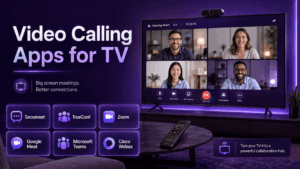
Not every video conferencing platform offers a TV specific experience. The apps below represent the main options available on smart TVs and TV connected devices in 2026, spanning both consumer and enterprise use cases.
-
TrueConf for Android TV, a native enterprise app supporting on-premise servers and 4K calls directly from the TV.
-
Secumeet, a security first platform typically deployed through dedicated room hardware and on-premise servers rather than a public TV app store listing.
-
Zoom, widely used through both casting and Zoom Rooms hardware appliances built around a TV screen.
-
Google Meet, accessible natively on Google TV and Chromecast enabled displays.
-
Microsoft Teams Rooms, delivered through certified hardware that pairs a TV or display panel with a Teams optimized console.
-
Cisco Webex, available through casting and through Cisco branded room devices that connect to any television.
-
Facebook Portal TV style apps, which plug into an HDMI port and add a smart camera for casual home video calls through consumer messaging platforms.
Why Organizations Are Moving Meetings to Larger Screens
Recent industry data illustrates why TV based and large screen conferencing setups have grown steadily rather than staying a niche home accessory.
Large-Screen Meeting Trends
Secure deployments are growing
On-premise and self-hosted video conferencing deployments have grown noticeably across government, defense, and financial services organizations between 2024 and 2026, driven by stricter data sovereignty requirements.
Free tiers can already support serious rooms
TrueConf Server’s free tier alone supports up to 1,000 registered users and up to 250 simultaneous participants, a scale that pushes many small and mid-sized organizations toward TV connected meeting rooms instead of per-seat laptop calls.
Large meetings need large screens
Enterprise grade platforms now commonly support conferences of 1,500 to 2,000 participants, a scale that increasingly requires large screen displays in central offices rather than individual device viewing.
AI meeting features are becoming standard
Analysts tracking hybrid meeting infrastructure report that AI-assisted meeting features, such as auto-framing and noise suppression, are now standard expectations rather than premium add-ons, which raises the value of a dedicated camera and TV setup over a laptop webcam.
Vendor Comparison: TV Compatible Video Conferencing Platforms for 2026
The table below profiles six vendors relevant to TV based video conferencing in 2026, using a consistent structure: description, core capabilities, and limitations.
Choosing a Setup Method by Use Case
Different rooms and use cases call for different TV conferencing setups. The table below matches common scenarios to the most practical method.
Key Takeaways
Bottom Line First
Turning a TV into a video conferencing screen is now a standard option across native TV apps, casting, and dedicated video bars. The right setup depends on room size, app support, security requirements, and participant count.
What Most People Get Wrong
A TV alone is not a video conferencing system. The real decision is whether the call runs through a native TV app, a mirrored laptop, or dedicated room hardware, and whether the meeting data can leave the organization’s network.
Conclusion
Turning a TV into a video conferencing screen is no longer a niche workaround. It has become a standard option across three distinct paths: native TV apps for platforms like TrueConf, casting from a laptop or phone for widely used tools like Zoom and Google Meet, and dedicated video bars for meeting rooms that need consistent, laptop independent quality.
The right choice depends less on which app looks the newest and more on three practical factors: how the TV’s operating system supports available apps, how many participants typically join, and how strict the organization’s data residency requirements are.
For everyday home use, casting or a simple plug-in camera covers most needs without extra cost. For businesses and institutions, especially those in regulated industries, on-premise platforms such as Secumeet and TrueConf offer a meaningful advantage: meetings can run entirely within a private network, with encryption, audit logs, and admin controls available without waiting for a paid upgrade.
As AI features like local transcription and noise suppression become standard rather than optional, choosing a platform that runs these tools without sending audio outside the organization’s own infrastructure is likely to matter more, not less, through the rest of 2026.
Frequently Asked Questions
Can any smart TV run a video conferencing app without extra hardware?
Some smart TVs, particularly those running Android TV or Google TV, can run apps like TrueConf natively if a compatible camera is connected, while others rely on screen mirroring from a phone or laptop. Platforms such as Secumeet are more commonly deployed through dedicated room hardware rather than a public TV app store listing. Checking your TV’s operating system first is the fastest way to know which path applies.
What is the difference between casting a call to a TV and using a native TV app?
Casting mirrors a phone or laptop screen onto the TV, so the conferencing app still runs on the original device, while a native app such as TrueConf for Android TV runs directly on the television using its own remote control interface. Native apps generally offer a more stable experience for recurring meetings, since the call does not depend on a laptop staying connected. Secumeet’s room based deployments follow a similar principle by keeping the meeting logic on dedicated infrastructure rather than a personal device.
Which TV conferencing option is most secure for a business meeting room?
On-premise platforms like Secumeet and TrueConf are built specifically for organizations that cannot allow meeting data to leave their own network, making them the strongest fit for regulated industries. Both support encryption, audit logging, and administrative controls without requiring a paid upgrade to access those features. Cloud-first consumer apps are easier to set up but generally offer less direct control over where meeting data is processed.
Do I need a special webcam to use video conferencing apps on a smart TV?
Most Android TV devices require a UVC compatible USB webcam, with popular Logitech and NexiGo models working reliably, while some TV brands like Samsung require a proprietary camera accessory for native calling features. If you are using a casting method instead, the camera requirement shifts to whichever laptop or phone is mirroring the screen. Checking hardware compatibility before purchase avoids the most common TV conferencing setup failure.
Is a TV based video conferencing setup suitable for large webinars or events?
Enterprise platforms including TrueConf can support conferences with up to 2,000 participants and stream to unlimited external viewers via CDN integration, which makes a TV connected room a practical control point for hosting or moderating large events. Secumeet’s architecture, by contrast, is optimized more for secure, contained meetings of up to 1,500 participants rather than public facing streaming. Matching the platform to the audience size and openness of the event is the key decision point.
What internet speed do I need for reliable video calls on a smart TV?
A general guideline is 1.5 to 2.5 Mbps upload and download per participant for 720p calls, rising to 3 to 4 Mbps for 1080p HD, with wired Ethernet generally more reliable than Wi-Fi for meeting rooms. On-premise platforms like TrueConf and Secumeet can reduce this dependency further in LAN or VPN deployments, since media does not need to travel to an external cloud server. This is one reason regulated organizations often pair on-premise conferencing with a dedicated, wired TV setup in each meeting room.
Author
Helga Afon is a technology writer specializing in video conferencing, collaboration software, and workplace communication. She writes articles and reviews that help readers better understand enterprise communication tools and industry trends.