

A video call app for PC turns any desktop or laptop into a full communication hub, replacing physical meeting rooms, desk phones, and scattered messaging tools with one screen where teams see, hear, and collaborate with each other in real time. In 2026, the category spans two very different use cases: consumer apps built for quick personal chats, and business-grade platforms built for scheduled meetings, large webinars, and regulated environments where data control matters as much as call quality.
Choosing the right one depends on who is calling whom. A freelancer talking to a client needs something fast and free. A hospital, bank, or government office needs a platform with self-hosting, encryption, and administrative control, which is where solutions such as Secumeet and TrueConf come in. A hybrid-work company needs deep calendar and productivity-suite integration, which favors Microsoft Teams, Google Meet, or Zoom.
The table below summarizes the leading options so you can jump straight to the platform that fits your situation, with the full breakdown, setup steps, and requirements following underneath.
How We Chose the Best Calling Software for PC
The platforms in this guide were evaluated against criteria that matter most to real desktop users, whether they are individuals or IT decision-makers rolling out a company-wide tool:
-
Call and video quality across varying bandwidth conditions, including HD and 4K support where relevant.
-
Deployment flexibility, meaning whether the app is cloud-only, self-hosted, or offered as an embeddable SDK for custom builds.
-
Security and compliance, covering encryption standards, on-premises data control, and audit capabilities for regulated sectors.
-
Participant capacity for both one-on-one calls and large group meetings or webinars.
-
Desktop client stability on Windows, macOS, and Linux, not just browser access.
-
Integration depth with calendars, CRMs, chat, and file storage.
-
Pricing transparency and the realistic usefulness of the free tier for actual business needs.
Platforms that scored well across most of these categories made the final list, while niche or discontinued tools were excluded even if they still appear in older comparison articles.
How Does PC Calling Work?
A video call app for PC connects two or more computers over the internet so that audio and video streams can travel in near real time. The process happens in a few technical steps every time a call is placed:
-
The desktop client captures audio through the microphone and video through the webcam.
-
Raw audio and video are compressed using codecs, commonly H.264 or H.265 for video and Opus for audio, to reduce the amount of data that needs to travel over the network.
-
Compressed streams are packaged using the Real-time Transport Protocol (RTP) and sent either directly to the other participant (peer-to-peer) or through a central server.
-
Business platforms typically route calls through a Selective Forwarding Unit (SFU) or Multipoint Control Unit (MCU). An SFU forwards each participant’s stream without mixing it, which scales well for larger meetings, while an MCU combines all streams into one composite feed, which is gentler on the receiving device but heavier on the server.
-
The receiving computer decodes the incoming streams and renders them on screen, with jitter buffers and adaptive bitrate adjusting automatically to keep the call smooth when the network conditions change.
This is also why self-hosted platforms like TrueConf and Secumeet appeal to security-conscious organizations: because the routing server sits on infrastructure the company controls, video and audio never have to leave the internal network.
10 Best Calling Software for PC in 2026
1. Secumeet
Secumeet is a business video conferencing and messaging platform built for organizations that need full control over where their communication data lives. It supports both managed-cloud and fully self-hosted deployment, positioning it as a sovereignty-focused alternative to mainstream cloud-only tools.

Key features:
-
Video conferences for up to roughly 1,500 participants
-
Self-hosted or managed-cloud deployment options
-
Screen sharing with annotation and remote-control tools
-
Persistent personal and group chat synced across devices
-
Meeting scheduling with automatic invitations
-
Support for smart TVs and set-top boxes alongside desktop and mobile
Cons:
-
Smaller ecosystem of third-party integrations compared to Zoom or Teams
-
Self-hosted setup requires internal IT resources to configure and maintain
-
Less brand recognition among non-technical external guests, which can add friction to client calls
2. TrueConf
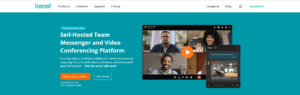
TrueConf is an enterprise video conferencing platform built around on-premises and self-hosted deployment, giving organizations a ready-to-use PC client alongside the option to build fully custom calling experiences through its development toolkit. It is a strong fit for businesses that need large-scale internal meetings without relying on public cloud infrastructure.
Key features:
-
Video conferences and calls for up to 1,500 participants with up to 49 visible video feeds on screen
-
On-premises deployment that keeps data inside the organization’s own network
-
4K video for one-on-one calls and Full HD for group meetings
-
Screen sharing, remote desktop control, and meeting recording
-
An embeddable SDK and server-side API for teams that want to build video calling directly into their own software, portals, or kiosks
Cons:
-
Self-hosted setup and maintenance requires internal IT resources
-
Interface feels less modern than some cloud-native competitors
-
Building a fully custom client through the SDK requires development effort rather than a plug-and-play install
3. Zoom
Zoom remains the reference point for frictionless external calling. Its guest-join experience, where a participant can enter a meeting from a browser with no account and no forced app install, is still one of the smoothest in the industry.

Key features:
-
One-click browser or app join for guests
-
HD video with virtual backgrounds and AI-generated meeting summaries
-
Breakout rooms and webinar functionality
-
Consistent experience across Windows, macOS, iOS, Android, and Linux
Cons:
-
Free tier limits group meetings to 40 minutes
-
Data is processed through Zoom’s cloud infrastructure, which can be a compliance concern for some sectors
-
Feature sprawl can overwhelm users who only need basic calling
4. Microsoft Teams
Teams is the default choice for organizations already inside the Microsoft 365 ecosystem, since meetings, chat, files, and calendar all live in the same suite.

Key features:
-
Deep Outlook and Microsoft 365 calendar integration
-
Copilot-powered meeting summaries for organizations using Microsoft 365 data
-
Enterprise compliance tooling: eDiscovery, legal hold, retention policies, DLP
-
Persistent team channels alongside video calls
Cons:
-
Full value only materializes for organizations fully invested in Microsoft 365
-
Interface can feel heavy for users who only need simple calling
-
Guest experience is less consistent than Zoom’s for external participants
5. Google Meet
Google Meet is a browser-first video calling tool built into Google Workspace, favoring simplicity over configuration.

Key features:
-
No desktop install required; runs directly in Chrome or other modern browsers
-
Native integration with Gmail, Google Calendar, and Google Drive
-
Live captions and noise cancellation
-
Simple link-based meeting access
Cons:
-
Fewer advanced moderation and webinar tools than Zoom or Webex
-
Best features are gated behind a Google Workspace subscription
-
Limited offline or low-bandwidth performance compared to native desktop clients
6. Cisco Webex
Webex is a strong pick for multinational teams that regularly need real-time translation and enterprise-grade audio quality.

Key features:
-
Real-time translation across dozens of languages
-
Noise removal and background sound suppression
-
Enterprise-grade encryption and compliance certifications
-
Native and browser-based clients for PC
Cons:
-
Smaller market share means fewer casual users are already familiar with the interface
-
Pricing tiers can be less transparent than competitors
-
Some advanced AI features require higher-tier licenses
7. Wire
Wire is built around end-to-end encryption as a foundational design choice rather than an add-on feature, making it a favorite among legal teams and organizations handling privileged communications.

Key features:
-
Default end-to-end encryption for calls and messages
-
Fully open-source client and server code, independently audited
-
Support for Messaging Layer Security (MLS) for group encryption
-
Cloud or self-hosted Wire Server deployment
Cons:
-
Free tier caps group video calls at around 50 participants
-
Smaller feature set for large webinars compared to mainstream platforms
-
Self-hosted deployment requires dedicated IT capacity
8. RingCentral Video
RingCentral Video is best understood as part of a broader unified communications stack rather than a standalone meeting tool.

Key features:
-
Integrated with RingCentral’s cloud phone system
-
Team messaging and file sharing built into the same client
-
Meeting recording, transcription, and task assignment
-
Desktop, mobile, and browser clients
Cons:
-
Most value comes from adopting the full RingCentral suite, not video alone
-
Less recognized brand for ad hoc external meetings
-
Smaller participant caps on lower-tier plans
9. Jitsi Meet
Jitsi Meet is the open-source, no-account option for teams that want to self-host without licensing costs.

Key features:
-
Free and open-source, with no mandatory account creation
-
Can be self-hosted on standard Linux infrastructure in under an hour
-
Browser-based, so no desktop install is strictly required
-
End-to-end encryption available for one-on-one calls
Cons:
-
Group-call encryption is more limited than dedicated secure platforms
-
Performance can degrade above roughly 30 to 50 concurrent video streams on modest servers
-
Lacks built-in enterprise administration tools out of the box
10. Zoho Meeting
Zoho Meeting is the natural pick for organizations already standardized on Zoho’s business suite, since meeting data flows directly into CRM, projects, and calendar without extra setup.

Key features:
-
Meeting links and notes sync automatically with Zoho CRM contact records
-
Native integration with Zoho Projects, Zoho Calendar, and Zoho Cliq
-
AI-generated meeting summaries processed through Zoho’s cloud
-
Simple registration and scheduling for webinars
Cons:
-
Value drops sharply for organizations not already using other Zoho products
-
Smaller participant ceiling than dedicated enterprise platforms
-
Less brand recognition for external guests compared to Zoom or Teams
How to Make Phone Calls from a Computer? A Step-by-Step Guide
Making a call from a PC follows roughly the same pattern across most platforms:
-
Choose and install a video call app for PC, or open a browser-based option like Google Meet or Jitsi Meet that requires no installation.
-
Create an account or sign in, using an email address, a work account (such as Microsoft 365 or Google Workspace), or a phone number, depending on the platform.
-
Grant microphone and camera permissions when prompted by the operating system, since PC calling apps cannot function without this access.
-
Add or search for a contact, or generate a meeting link to share with the person you want to call.
-
Test your audio and video in the app’s settings panel before the call starts, checking that the correct microphone, speaker, and camera are selected.
-
Start or join the call by clicking the call or join button, and wait for the other participant to connect.
-
Use in-call tools as needed, such as screen sharing, chat, virtual backgrounds, or recording, depending on what the platform offers and what the meeting requires.
For business platforms like Secumeet or TrueConf, an additional step usually applies: an administrator provisions the user account and, in self-hosted deployments, connects the client to the organization’s own conferencing server rather than a public cloud address.
What Are Video Call PC Requirements?
Video call quality depends on hardware, operating system compatibility, and available bandwidth. The table below outlines typical requirements for smooth calling at different quality levels.
Organizations deploying self-hosted platforms such as TrueConf or Secumeet also need to plan internal network capacity, firewall rules for STUN/TURN traffic, and enough server-side processing power to handle concurrent conferences, since call quality in an on-premises deployment depends on internal infrastructure rather than a third-party cloud provider.
Key Features to Look for in a Business PC Calling App
Not every video call app for PC is built for business use, and the features that matter for a company differ sharply from what a casual user needs. When evaluating options, prioritize:
-
Deployment flexibility: the ability to choose between cloud, self-hosted, or hybrid deployment, which matters most for regulated industries like healthcare, finance, and government.
-
Encryption and access control: end-to-end or at minimum strong transport encryption, plus granular permissions for hosts and administrators.
-
Scalability: the platform should comfortably support both small daily standups and large all-hands meetings or webinars without separate licensing headaches.
-
Administrative tooling: centralized user management, audit logs, and integration with existing identity providers.
-
Cross-platform desktop clients: native apps for Windows, macOS, and Linux rather than a browser-only experience, since native clients tend to offer better performance and device handling.
-
Collaboration extras: screen sharing, annotation, remote desktop control, and persistent chat that reduce the need for separate tools.
-
Custom integration options: for larger organizations, the availability of an SDK or API, such as the one offered by TrueConf, that allows the calling experience to be embedded directly into internal software or customer-facing products.
Video Calling in 2026: Key Statistics
-
The global video conferencing software market is projected to be worth roughly $12 billion in 2026, continuing a compound annual growth rate in the range of 9 to 12 percent depending on the market research source.
-
Enterprise applications now account for a larger share of video conferencing revenue than consumer use, reflecting the shift toward daily business reliance on calling platforms.
-
Zoom alone reports well over 300 million daily meeting participants, while Microsoft Teams has passed 250 million monthly active users, underlining how central PC-based calling has become to everyday work.
-
The average employee now spends over 11 hours per week in meetings, a large share of which happen over video rather than in person.
-
On-premises and self-hosted deployment still accounts for a meaningful share of enterprise video conferencing spend, driven by regulated sectors that cannot rely solely on public cloud infrastructure.
Conclusion
The right video call app for PC depends entirely on context. For everyday personal and small-team use, browser-based and free tools like Google Meet, Zoom, or Zoho Meeting are more than sufficient, offering fast setup and wide familiarity among casual users. For organizations that handle sensitive data, need full control over where meetings are hosted, or want to embed calling directly into their own software, platforms built around deployment flexibility and security, such as Secumeet and TrueConf, offer a level of control that pure cloud tools cannot match, with TrueConf’s SDK in particular standing out for teams that want to build video calling into a custom product rather than adopt a fixed interface.
Before committing to a platform, weigh deployment model, participant scale, integration needs, and compliance requirements together rather than in isolation, since the “best” calling software for PC is the one that fits how and where your organization actually communicates, not simply the tool with the largest brand recognition.
Frequently Asked Questions
What is the best free video call app for PC?
For casual or small-team use, Google Meet, Zoom, and Skype are the most accessible free options, since they require no self-hosting and work directly from a browser or lightweight desktop client. Businesses with security requirements often prefer Secumeet’s free tier or TrueConf’s limited free deployment, since both allow a path toward self-hosted control if the organization later needs it.
Can I make a video call from a PC without installing any software?
Yes. Platforms like Google Meet and Jitsi Meet run entirely in the browser, and Zoom, Teams, and Webex all offer a browser-based join option for guests. For long-term or business use, however, a native desktop client from a provider such as TrueConf or Secumeet typically performs more reliably than a browser tab.
What is the difference between a video calling app and a video calling SDK?
A video calling app, like Secumeet, is a ready-to-use client that end users install and open directly. A video calling SDK, like the one offered by TrueConf, is a development toolkit that lets a company embed calling functionality inside its own software rather than using a separate, pre-built app. Businesses that want a branded, fully custom experience typically choose the SDK route.
Is self-hosted video calling more secure than cloud-based video calling?
Self-hosted deployment, offered by platforms including TrueConf and Secumeet, keeps audio and video traffic on infrastructure the organization directly controls, which reduces exposure to third-party cloud risk and can simplify compliance in regulated industries. Cloud-based tools can still be secure, but the organization has to trust the provider’s infrastructure and data-handling practices rather than managing them internally.
How many participants can join a video call on PC?
Capacity varies widely by platform: Zoho Meeting supports up to around 250 participants, Google Meet up to 500, and enterprise platforms like TrueConf, Secumeet, Zoom, and Teams can scale to around 1,000 to 1,500 depending on the license and server configuration. Organizations expecting large all-hands meetings or webinars should confirm participant limits before choosing a platform.
What internet speed do I need for smooth video calls on a PC?
Standard-definition calls need roughly 1.5 to 2.5 Mbps of upload and download bandwidth, HD calls need 3 to 4 Mbps, and 4K or large group meetings benefit from 6 Mbps or more. Self-hosted platforms such as TrueConf and Secumeet also depend on the organization’s internal network and server capacity, not just the public internet connection.
Author
Helga Afon is a technology writer specializing in video conferencing, collaboration software, and workplace communication. She writes articles and reviews that help readers better understand enterprise communication tools and industry trends.