
Updated May 2026
Enterprise video conferencing has moved from a convenience to a core infrastructure requirement. Organizations with distributed teams, hybrid workforces, and global client relationships need platforms that go well beyond basic video calls — delivering security, administrative control, scalability, and deep integration with existing workflows.
This review covers what enterprise video conferencing actually means at scale, what separates entry-level from enterprise-grade tools, and a detailed breakdown of the five leading platforms: TrueConf, Zoom, Microsoft Teams, Cisco Webex, and Google Meet.
Bottom line: No single platform is universally best. The right choice depends on your deployment model preference (cloud vs. on-premises), your existing tech stack, your security and compliance requirements, and the size and structure of your meetings.
Quick Comparison: Top Enterprise Video Conferencing Platforms
|
Platform |
Deployment |
Best For |
Max Participants |
Key Differentiator |
|---|---|---|---|---|
|
TrueConf |
On-premises / Private Cloud |
High-security industries, air-gapped networks |
1,500 per meeting |
Full data sovereignty, no internet required |
|
Zoom |
Cloud |
General enterprise, large webinars |
50,000+ (webinar) |
Ease of use, ecosystem breadth |
|
Microsoft Teams |
Cloud |
Microsoft 365 organizations |
20,000 (live events) |
Native Office integration, persistent channels |
|
Cisco Webex |
Cloud / Hybrid |
Enterprise & government, room systems |
100,000 (webcast) |
AI features, hardware ecosystem, FedRAMP |
|
Google Meet |
Cloud |
Google Workspace organizations |
1,000 (enterprise) |
Browser-native, seamless Calendar integration |
What Are Enterprise Video Conferencing Solutions?
Enterprise video conferencing systems are platforms that enable companies to hold face-to-face sessions over video in real time, no matter where participants are located. These tools combine high-quality visual and audio with collaboration capabilities so that teams can work together as if they were in the same space, even when spread across cities or countries. For large corporations with a global footprint and hybrid teams (mix of office and remote staff), such solutions have become essential for daily workflows. They encourage communication and collaboration by bringing colleagues and company leaders “into the room” virtually with far better interaction than a phone call. In fact, top enterprise video meeting platforms help businesses tackle the challenges of a global market in a cost-effective way and form a critical pillar of an organization’s unified communications strategy.
Video conferencing’s significance was highlighted throughout the 2020 outbreak, when most from the world abruptly shifted to distant work. In that period of turmoil, video meetings transformed a vital bridge that kept organizations running despite restrictions. Even now, with numerous offices embracing hybrid work frameworks, enterprise video conferencing enables teams to remain connected. Leadership executives can contribute in projects virtually, unifying teams throughout different locations and phases of progress without expensive journeys. One-click video updates and virtual sessions ensure projects operate smoothly with zero time wasted during transit. Large-scale activities like town forum meetings, product showcases, or trainings could happen in a unified video gathering and be captured to include participants who couldn’t join live.In essence, enterprise video conferencing platforms make everything possible to maintain everyone on this same page, whether personnel are located in the office or performing from residence, accelerating decision-making and interaction across all organization.

Insight #1 — Cloud vs. On-Premises Is a Governance Decision, Not Just a Technical One
Data Sovereignty Drives Deployment Choice
Most buyers treat the cloud vs. on-premises choice as an IT infrastructure question. In practice, it’s a data governance decision. Cloud platforms like Zoom, Teams, and Google Meet process and store meeting data on vendor-managed servers — meaning metadata, recordings, and participant information live outside your firewall. On-premises platforms like TrueConf place that data entirely within your own network, under your own policies and audit controls. For industries where data residency is regulated or where air-gapped networks are required (defense, critical infrastructure, classified government work), on-premises isn’t a preference — it’s a compliance requirement.
Benefits of Enterprise Video Conferencing
Adopting enterprise-grade video solutions offers numerous advantages for businesses. Some of the key benefits include:
- Improved Collaboration Across Locations: Teams can work together in synchronized time from different offices or regions, brainstorming and sharing insights instantly instead of waiting for emails or travel arrangements. For example, a design team in London can meet via video with engineers in New York to solve a challenge immediately, rather than scheduling an in-person session days or weeks afterward. This real-time collaboration keeps initiatives moving forward smoothly.
- Cost and Time Savings: Video meetings help companies reduce unnecessary travel expenses and save considerable time. There’s less need for sending managers or clients around for face-to-face discussions when you can meet via a webcam. This not only cuts airfare and lodging costs but also frees up hours that would have been spent in transport. Employees can reinvest that time into productive tasks, making the organization more streamlined.
- Higher Productivity and Faster Decisions: Being able to jump on a video call at a moment’s notice leads to quicker responses and problem-solving. A brief video session can resolve in minutes what might take days over email. By minimizing delays and enabling immediate clarification through face-to-face dialogue, video conferencing accelerates project schedules and improves team output. The visual feedback of seeing colleagues’ expressions also helps avoid confusion and keeps everyone aligned.
- Flexibility for Hybrid Work: Enterprise video conferencing supports remote and mixed work models, allowing employees to contribute from home, on the road, or in different offices with equal presence. This flexibility means companies can tap into talent anywhere in the world and adapt to situations like office closures or travel limitations. Meetings can seamlessly include both in-person and remote participants, ensuring everyone remains involved and on the same page.
- Global Connectivity with Clients and Partners: Video conferencing makes it easy to connect with clients, partners, or suppliers internationally without complicated setup. Instead of just a voice conversation, salespeople can give product demos over video to a client abroad, or an executive can meet face-to-face with an international partner organization. This personal visual interaction builds stronger relationships and trust. In essence, distance is no longer a barrier – a global team or customer base can be engaged as effectively as if everyone were in one conference room.
- More Engaging Communication: Seeing the person you’re talking to – their facial expressions and body language – leads to more engaging and human dialogues than an audio-only call. Team members often feel more connected and attentive in video meetings, which can boost morale and cohesion. Features like screen sharing, virtual whiteboards, and chat during meetings also enrich interaction, making discussions more interactive and clear.
By leveraging these benefits, enterprises can keep their workforce better coordinated, faster-moving, and more cost-efficient. For instance, one manufacturer that adopted video conferencing for internal sessions found it not only saved travel costs but also reduced project bottlenecks, since design decisions and approvals happened faster via video than waiting for quarterly in-person gatherings. Overall, enterprise video conferencing helps modern businesses stay agile and collaborative in a world where work is increasingly distributed.
(For example, management at one organization was able to remotely participate in product development sessions across different offices, ensuring issues were identified early without costly on-site trips. This kind of instant virtual interaction keeps projects on schedule and on target.)
Key Features of Enterprise Video Conferencing Solutions
Not all video meeting systems are equal – especially when it comes to meeting the demands of a large organization. Here are some key features and attributes to look for in an enterprise video conferencing solution:
High Quality & Reliability:
The platform should deliver consistent high-definition visuals and clear audio for every session. In an enterprise setting, glitches can be very disruptive – even a few minutes of technical issues can waste hours of collective effort, and a poor-quality video call might even jeopardize a client relationship. Top solutions invest in robust infrastructure to minimize downtime and latency. Reliability at scale (hundreds or thousands of participants) is essential so that important company-wide meetings or webinars run smoothly without failures.
Robust Security & Privacy:
Enterprises need strong security protocols to protect sensitive communications. A good solution will offer features like secure logins (single sign-on, multi-factor authentication), encryption of meetings, password-protected meetings or waiting areas, and role-based access control for hosts and administrators. These security measures ensure only authorized people enter and that meeting data remains confidential. For example, executives discussing financial results or product details can do so over a video call knowing the platform meets compliance standards (GDPR, HIPAA, etc.) and has the necessary protections in place.
Scalability & Capacity:
Enterprise video solutions must be able to scale from small team meetings to large all-hands events. This means supporting a large number of concurrent users and high attendee volumes in a single meeting without performance problems. The pricing model should also be flexible and adaptable – while cost matters, organizations should look for affordable plans that can grow with them. Free consumer-grade apps might not cut it for enterprise requirements. A scalable platform with an appropriate pricing model (enterprise licenses, etc.) ensures the company isn’t constrained as it expands.
Ease of Use and Accessibility:
The best solutions are intuitive and easy for everyone to navigate, from tech-savvy employees to less technical visitors. This includes user-friendly interfaces and seamless experience across devices. Meetings should be easy to schedule (ideally integrated with calendars) and join with one click, without requiring complex setup or training. Mobile support is also crucial – executives traveling or employees working from home should be able to join via their laptops, tablets, or smartphones and have a consistent experience. Effective platforms connect conference rooms, desktops, and mobile devices all in one environment. Features like screen sharing, chat, or recording should be straightforward to activate via simple controls.
Integration & Interoperability:
In an enterprise environment, a video conferencing tool should work well with other business applications and workflows. This means integrating with calendar and email (for scheduling invitations), with productivity apps (for sharing documents or data), and even with existing conference room hardware or phone systems. A high-quality enterprise solution will fit into your existing IT ecosystem: for instance, it might integrate with your Office 365 or Google Workspace suite for scheduling and document sharing, or allow interoperability with older video conferencing systems via standards like SIP/H.323. Without good integration, employees may struggle juggling separate platforms, so interoperability is key to a “seamless” communication experience across platforms.
Feature Comparison Matrix
|
Feature |
TrueConf |
Zoom |
Microsoft Teams |
Cisco Webex |
Google Meet |
|---|---|---|---|---|---|
|
On-Premises Deployment |
✅ Yes |
❌ No |
❌ No |
Partial |
❌ No |
|
End-to-End Encryption |
✅ Yes |
✅ Yes |
✅ Yes |
✅ Yes |
✅ Yes |
|
4K / Ultra HD Video |
✅ Yes |
Partial |
❌ No |
✅ Yes |
❌ No |
|
AI Transcription / Captions |
✅ Yes |
✅ Yes |
✅ Yes |
✅ Yes |
✅ Yes |
|
SIP/H.323 Interoperability |
✅ Yes |
Partial |
Partial |
✅ Yes |
❌ No |
|
Active Directory / SSO |
✅ Yes |
✅ Yes |
✅ Yes |
✅ Yes |
✅ Yes |
|
Webinar / Broadcast Mode |
✅ Yes |
✅ Yes |
✅ Yes |
✅ Yes |
✅ Yes |
|
Persistent Team Channels |
✅ Yes |
✅ Yes |
✅ Yes |
✅ Yes |
❌ No |
|
Native Office 365 Integration |
❌ No |
Partial |
✅ Yes |
Partial |
❌ No |
|
Native Google Workspace Integration |
❌ No |
Partial |
❌ No |
Partial |
✅ Yes |
|
FedRAMP Authorization |
❌ No |
✅ Yes |
✅ Yes |
✅ Yes |
✅ Yes |
Top 5 Enterprise Video Conferencing Solutions
There are numerous video conferencing options on the marketplace, but a handful stand out as notably particularly adapted for enterprise operations. Below are several of the leading enterprise video platforms solutions available currently (in no specific order), along with why their features assist businesses:
TrueConf

Best for: High-security industries, government, defense, finance, and any organization requiring complete data sovereignty or air-gapped network operation.
TrueConf is an enterprise-grade solution known for its security focus and on-premises deployment model. Unlike cloud-first platforms, TrueConf allows companies to host their own dedicated video conferencing infrastructure inside the corporate network — meaning meetings can run entirely without an internet connection, with all data remaining under the organization’s direct control.
This capability is not a niche feature. For industries like finance, government, or defense — where regulatory requirements mandate that meeting data never leave the corporate perimeter — it is the most important capability on the list. TrueConf directly addresses the compliance gap that cloud-only platforms cannot fill.
Key capabilities
-
Ultra HD (4K) video streams for demanding high-resolution environments
-
Conferences with up to 1,500 participants in a single event
-
Secure team messaging, file sharing, interactive screen sharing, and virtual whiteboards
-
Integration with SIP/H.323 legacy video systems for hardware room compatibility
-
Active Directory and LDAP integration for centralized user management
-
Full offline operation — no internet dependency
Real-world deployment: Hindustan Aeronautics Limited used TrueConf to connect over 30,000 employees within a private collaboration cloud, achieving significant reductions in travel costs by moving meetings to a secure virtual environment.
Strengths
-
Complete data sovereignty — no third-party servers involved
-
Works in air-gapped and classified network environments
-
4K video quality at scale
-
Legacy hardware interoperability via SIP/H.323
Limitations
-
Requires in-house IT capacity for deployment and maintenance
-
Less suited for organizations without dedicated IT infrastructure
-
Less marketplace ecosystem compared to Zoom or Teams
Zoom

Best for: General enterprise use, large-scale webinars, and organizations prioritizing ease of adoption.
Zoom is perhaps the most widely recognized video communication platform, offering a cloud-based framework that has become a de facto standard across many industries. Its primary strength is reliability combined with scalability — Zoom handles everything from one-on-one calls to webinars with tens of thousands of participants.
Zoom’s webinar module can broadcast to large audiences for company-wide announcements, investor events, or public forums. Within meetings, it offers a rich collaborative feature set: breakout rooms for focused group work, virtual hand-raising and polling, whiteboarding, and in-meeting messaging. These tools help keep large sessions structured and participatory rather than passive.
Security has been substantially improved in recent versions — Zoom now includes end-to-end encryption for calls and robust host controls (waiting rooms, passcodes, participant locking) to prevent unauthorized access. Its integration ecosystem is exceptionally broad, connecting with hundreds of business applications including CRM platforms, calendars, and productivity suites.
Strengths
-
Widely adopted, meaning minimal friction for external participants
-
Excellent webinar and large-event broadcasting capabilities
-
Rich collaboration tools (breakout rooms, polling, whiteboard)
-
Extensive third-party app integrations
Limitations
-
Cloud-only — data processed on Zoom’s servers
-
Privacy and data residency concerns for regulated industries
-
Pricing can escalate significantly at enterprise scale
Microsoft Teams
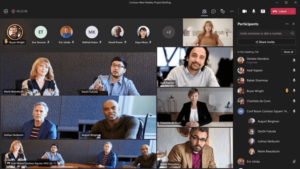
Best for: Organizations running Microsoft 365, enterprises needing a unified hub for chat, meetings, and file collaboration.
Microsoft Teams is not simply a video conferencing tool — it is a full enterprise communication hub that combines persistent workplace messaging, real-time document collaboration, and video meetings in a single environment. For organizations already invested in the Microsoft 365 ecosystem, Teams is the natural centerpiece of internal communication.
The integration depth is unmatched within the Microsoft world: you can schedule a Teams call from Outlook, co-edit a Word or Excel document during the meeting, share files from OneDrive or SharePoint without leaving the interface, and search through conversation history alongside shared documents. This eliminates the context-switching that fragments productivity when teams use separate tools for chat, calls, and file management.
Teams is built with enterprise security as a baseline: data is encrypted in transit and at rest, multi-factor authentication is supported, and it enforces compliance with GDPR, HIPAA, and other regulatory frameworks. Large-scale broadcasting is supported for up to 20,000 participants through live events, making it viable for company-wide presentations and virtual conferences.
Strengths
-
Deep, native integration with Microsoft 365 apps and services
-
Persistent channels organized by team, department, or project
-
Strong compliance posture (GDPR, HIPAA, SOC 2)
-
Single sign-on via Microsoft credentials simplifies adoption
Limitations
-
Heavy and resource-intensive compared to lightweight alternatives
-
Primarily valuable for Microsoft 365 subscribers — less compelling for other ecosystems
-
Video quality occasionally inconsistent on lower-bandwidth connections
Cisco Webex

Best for: Large enterprises and government organizations requiring high reliability, AI-enhanced meeting capabilities, and a mature hardware room ecosystem.
Cisco Webex is one of the longest-standing names in enterprise video conferencing, with a history dating to the 1990s. It is engineered for complex, large-scale conferencing on a global stage and is particularly common in enterprises and government organizations where reliability and compliance are paramount.
Webex offers a full suite of meeting capabilities — HD video, screen sharing, recording, live transcription — along with a robust webinar and virtual event feature set. One of its distinguishing strengths is an advanced AI layer that has been built directly into the meeting experience: real-time transcription, multi-language translation, noise cancellation, and speaker tracking are all available natively. These capabilities make large international meetings more accessible and more productive, removing language and acoustic barriers that affect global teams.
Cisco’s own hardware ecosystem — Webex Boards, desk devices, and room systems — integrates seamlessly with the software platform, enabling smart meeting room deployments where presence detection, one-touch join, and automatic camera tracking work out of the box. Webex also holds FedRAMP authorization, making it a compliant choice for U.S. federal government use.
Strengths
-
Mature, proven platform with enterprise-grade reliability
-
Advanced AI features: transcription, translation, noise cancellation
-
Deep hardware room ecosystem (Cisco room devices)
-
FedRAMP authorized for government use
Limitations
-
Interface can feel less intuitive compared to Zoom or Google Meet
-
Higher cost at entry for hardware room deployments
-
Tighter value proposition outside existing Cisco networking environments
Google Meet

Best for: Organizations running Google Workspace, teams prioritizing browser-native simplicity and fast external meeting access.
Google Meet is Google’s enterprise video communication platform, tightly integrated with the broader Google Workspace suite. If your organization uses Gmail and Google Calendar, Meet is embedded directly into the scheduling flow — adding a video session to any calendar invite requires a single click, and all participants join from a browser link without installing additional software.
This browser-native approach is a meaningful practical advantage. External participants — clients, vendors, partners — can join without downloading an app or creating an account, reducing friction in high-frequency external meetings. The platform has matured steadily, adding noise reduction, live captions, digital whiteboarding, and breakout rooms to its feature set.
Meet supports up to 1,000 participants in enterprise plans and extends further in webinar mode. It runs on any device — laptop, mobile, or conference room hardware — with a consistent experience across all. Google Meet meets Google’s security standards, with encrypted calls and admin-level controls over who can join or present.
Strengths
-
Truly browser-native — no installation required for any participant
-
Seamless with Google Calendar, Gmail, Drive, and Docs
-
Ideal for organizations with high-frequency external meetings
-
Simple, uncluttered interface with low learning curve
Limitations
-
Fewer advanced enterprise admin controls compared to Teams or Webex
-
Less suitable for very large broadcast events
-
Less value outside Google Workspace environments
Insight #2 — The “Best Integrated” Platform Wins in Daily Adoption, Not in Feature Demos
Calendar Integration Drives Real-World Usage
When enterprises evaluate video conferencing platforms in procurement reviews, AI transcription and breakout rooms score high. But when it comes to daily adoption by frontline employees, calendar integration is the most important factor. The platform that is the fewest clicks from your email and scheduling system gets used consistently; the platform that requires switching contexts gets abandoned in favor of whatever is already open. Microsoft Teams wins in Microsoft shops not because its video quality is best, but because it is unavoidable — it lives inside Outlook. Google Meet wins in Google Workspace organizations for exactly the same reason. If your stack is not already aligned with one ecosystem, that is your most important signal to evaluate before any feature comparison.
How to Choose the Right Platform: A Buyer’s Decision Framework
Choosing an enterprise video conferencing platform is not just a software purchase — it’s an infrastructure decision that affects IT, security, HR, and operations. Use this framework to narrow your options:
-
Start with deployment model. Do you need on-premises or private cloud for regulatory reasons? If yes, TrueConf or a hybrid Webex deployment are the primary candidates. If cloud is acceptable, proceed to the next question.
-
Identify your existing ecosystem. Are you a Microsoft 365 shop? Default to Teams. Are you running Google Workspace? Google Meet is the path of least resistance. Neither? Then evaluate Zoom and Webex on their own merits.
-
Define your scale requirements. How large are your largest meetings? How often do you run webinars or all-hands events? Zoom and Webex lead at very large scales (10,000+ participants). Teams handles up to 20,000 for live events. TrueConf handles up to 1,500 per event.
-
Assess your security and compliance requirements. Do you have HIPAA, GDPR, FedRAMP, or sector-specific mandates? Confirm the platform’s certifications and audit capabilities before proceeding. For air-gapped networks, TrueConf is the only viable option among the five reviewed here.
-
Evaluate hardware room strategy. Do you plan to equip physical conference rooms? Webex has the deepest proprietary hardware ecosystem. Teams Rooms and Zoom Rooms are both mature. TrueConf integrates with SIP/H.323 rooms.
-
Test real-world user adoption. Run a pilot with actual users, not just IT or procurement. Measure join completion rate, support ticket volume, and user satisfaction. The most feature-rich platform that employees actively avoid is worse than a simpler one they use consistently.
Enterprise Video Conferencing: Total Cost Considerations
|
Cost Category |
Cloud Platforms (Zoom, Teams, Meet) |
On-Premises (TrueConf) |
|---|---|---|
|
Licensing Model |
Per-user/month subscription |
One-time license or annual subscription |
|
Infrastructure Cost |
Minimal (vendor-managed) |
Server hardware, network, IT staff |
|
IT Maintenance Overhead |
Low (vendor updates automatically) |
Moderate to High (in-house management) |
|
Long-Term Cost (5+ years) |
Scales with user count |
Can be lower at large scale |
|
Data Egress / Storage |
Often extra cost |
Controlled internally |
|
Compliance Audit Cost |
Depends on vendor certifications |
Fully within your control |
|
Training / Onboarding |
Variable (Zoom lowest, Teams highest) |
Variable based on UI familiarity |
Insight #3 — Room System Compatibility Determines Real-World Meeting Quality More Than Software Features
Hardware Compatibility Is a Deployment Prerequisite
Enterprise video conferencing doesn’t only happen at laptops. A significant share of important meetings occur in physical conference rooms with installed hardware — cameras, room-scale audio systems, and touch-panel controls. The software platform you choose must be compatible with those room systems, or you face a split environment where laptop participants have a different (often better) experience than room participants. Webex has the most mature native hardware ecosystem. Teams Rooms and Zoom Rooms are both well-developed. TrueConf supports legacy SIP/H.323 hardware, which matters enormously in organizations with existing room investments they cannot immediately replace. Choosing a platform without auditing your room hardware compatibility first is one of the most common and costly enterprise deployment mistakes.
Conclusion
Enterprise video conferencing has become a notion cornerstone of updated business communication. It drives efficiency, cuts costs, and additionally improves how groups and clients engage – in detail, it’s now crucial in a sphere where hybrid functions is the emerging norm.
The right enterprise video conferencing platform gives global organizations the agility plus connectivity to maintain their workforce efficient no matter wherever people are positioned.
With a carefully-selected platform, employees stay engaged alongside collaborative, and suppliers, partners, plus customers can gain a deeper link with your enterprise despite the tangible distance.
By understanding these benefits and aspects that matter greatly and through evaluating top alternatives like those listed, businesses can identify a video conferencing resource that not solely replaces the gathering room, but within many methods enhances it, supporting communication that remains flexible, comprehensive, and impactful across the entire globe.
FAQ: Everything You Need to Know
What is the most secure enterprise video conferencing platform?
What is the difference between cloud and on-premises video conferencing for enterprises?
How many participants can enterprise video conferencing platforms support?
Which enterprise video conferencing platform works best without the internet?
Do enterprise video conferencing platforms integrate with Microsoft 365 and Google Workspace?
What should enterprises prioritize when choosing a video conferencing platform?
Is enterprise video conferencing software different from consumer apps like FaceTime or WhatsApp?
Author
Olga Afonina is a technology writer specializing in video conferencing, collaboration software, and workplace communication. She writes articles and reviews that help readers better understand enterprise communication tools and industry trends.