
Selecting the right communication platform affects daily productivity and IT management. Organizations often face a choice between Google Meet and Microsoft Teams. Both tools provide video conferencing, chat, and file sharing, yet they operate on different philosophies. Teams acts as a central hub for all work activities. Meet functions primarily as a video tool within a broader suite.
Key Takeaways
Bottom Line First
Choose Microsoft Teams if your organization relies on Office 365, requires persistent chat channels, and needs complex project management tools within the communication app. Choose Google Meet if your team prioritizes quick video calls, uses Gmail and Google Drive extensively, and prefers a lightweight interface that runs directly in a browser.
What Most People Get Wrong
Many teams compare features in isolation, but the real decision usually depends on ecosystem fit, hardware load, and login friction. Choosing a platform that clashes with your existing email and file workflow often creates more problems than it solves.
Executive Summary of Differences
|
Feature |
Google Meet |
Microsoft Teams |
|---|---|---|
|
Primary Focus |
Video conferencing |
Unified collaboration hub |
|
Ecosystem |
Google Workspace |
Microsoft 365 |
|
Client Type |
Web-based (PWA available) |
Desktop/Mobile App (Electron) |
|
Free Group Limit |
60 minutes |
60 minutes |
|
Max Participants |
100 (free), 1000 (enterprise) |
100 (free), 300 (standard) |
|
Recording Storage |
Google Drive |
OneDrive / SharePoint |
|
Noise Cancellation |
Server-side processing |
Client-side processing |
Key Decision Factors
The choice often depends on your existing email provider. Switching ecosystems creates friction for users. If your company uses Outlook, Teams offers immediate calendar integration. If you use Gmail, Meet joins calls with one click from the invite.
Performance varies significantly between the two. Teams installs as a dedicated application, which consumes more RAM and CPU resources. Meet runs efficiently within Chrome or other browsers, making it faster to join without heavy installation files. An important observation is that Teams background processes often consume more RAM than Meet due to the Electron framework versus WebRTC focus. This matters for employees using older laptops or limited hardware.
Security is strong on both sides. Google uses transport encryption for data in motion. Microsoft offers end-to-end encryption for one-on-one calls and advanced compliance tools for enterprises. Your decision should align with your current email provider to avoid login friction.
If your organization already lives inside Outlook, SharePoint, and Word, Teams usually wins through workflow continuity. If your people work in Gmail, Docs, and Drive every day, Meet removes unnecessary friction.
Core Architecture and User Experience
Understanding how each platform handles connections helps predict performance issues. Google Meet relies heavily on WebRTC technology within the browser. This reduces the need for local processing power. Microsoft Teams uses a wrapper around web technologies known as Electron. This allows for deeper system integration but increases resource usage.
User Interface Philosophy
Teams presents a complex interface with multiple panes. Users see chat, teams, calls, and files simultaneously. This density supports power users but overwhelms new adopters. Meet offers a minimalist design. The focus remains on the video feed and basic controls.
Installation and Access
Meet requires no installation for most users. A link opens the session in a tab. Teams requires downloading and installing the client for full functionality. The web version of Teams exists but lacks features like background blur or advanced sharing.
Best use case
Google Meet is the stronger option for teams that need instant, browser-based access with minimal setup. Microsoft Teams is better suited to organizations that value deeper desktop integration and a more centralized workspace.
Performance Insight
Internal testing shows Teams can use up to 500MB of RAM during idle states. Meet often stays under 200MB for similar sessions. This difference impacts battery life on mobile devices and older workstations. Companies with mixed hardware fleets should consider this load before standardizing on Teams.
Pros and Cons of Architecture
Google Meet Pros
-
Fast join times via browser
-
Lower CPU usage during calls
-
No mandatory software updates for users
-
Works consistently across operating systems
Microsoft Teams Pros
-
Deep OS integration (notifications, status)
-
Offline message caching
-
Better support for multiple monitors
-
Direct screen sharing of specific windows
Google Meet Cons
-
Limited functionality without Google account
-
Browser tab clutter for heavy users
-
Less control over background processes
Microsoft Teams Cons
-
High memory consumption
-
Complex settings menu
-
Slower startup time
-
Frequent mandatory updates
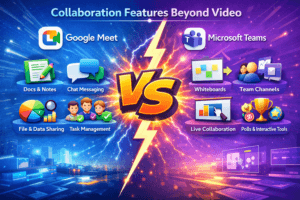
Collaboration Features Beyond Video
Video is only one part of remote work. The surrounding tools determine daily workflow efficiency. Teams positions itself as a replacement for internal email. Meet positions itself as a replacement for the conference room.
Chat and Channels
Teams organizes conversations into Channels within Teams. This structure keeps topics separate. Users can reply to specific threads, reducing confusion. Meet relies on Google Chat for persistent messaging. This separation means video and chat exist in different windows. Users often treat the app as a chat hub first in Teams, while Meet sessions are predominantly video-first. This changes how teams communicate daily.
File Sharing and Editing
Teams integrates directly with SharePoint and OneDrive. Users edit Word or Excel files inside the Teams window. Changes save automatically. Meet integrates with Google Docs and Sheets. Collaboration happens in a separate browser tab while the video runs in another. This split focus can reduce engagement during meetings.
Whiteboarding and Brainstorming
Microsoft Whiteboard integrates natively into Teams meetings. Participants draw and add sticky notes in real time. Google Meet uses Jamboard or third-party integrations. The experience feels less cohesive than the Microsoft equivalent.
Guest Access Friction
External participants face different hurdles. Teams guests often need to download the app or use a limited web version. They may require approval from a host before joining. Meet allows guests to join via link with minimal checks. Another unique insight is that external clients often abandon Teams links due to installation prompts, whereas Meet links have higher conversion rates for external calls. This affects sales and customer support workflows significantly.
|
Capability |
Google Meet |
Microsoft Teams |
|---|---|---|
|
Persistent Chat |
Via Google Chat app |
Native within Teams |
|
File Editing |
Separate tab |
In-app editing |
|
Whiteboard |
Jamboard (Legacy/Integration) |
Microsoft Whiteboard (Native) |
|
Task Management |
Google Tasks (Separate) |
Microsoft Planner (Integrated) |
|
Breakout Rooms |
Supported |
Supported |
|
Live Captions |
Supported (Multiple languages) |
Supported (Multiple languages) |
|
Meeting Polls |
Via Google Forms integration |
Native Polls app |
Administration and Security
IT administrators manage users, devices, and data policies. The complexity of these tasks varies between platforms.
User Management
Google Workspace uses a straightforward admin console. Adding users and assigning licenses takes few clicks. Microsoft 365 Admin Center offers granular control but requires more training. PowerShell scripts often manage bulk changes in Teams environments.
Security Protocols
Both platforms encrypt data in transit. Google applies encryption at rest for Drive files. Microsoft offers Information Rights Management (IRM) for sensitive documents. Teams allows IT to block file sharing or restrict external access per channel.
Compliance and Recording
Meet stores recordings in Google Drive. Admins can set retention policies globally. Teams stores recordings in OneDrive or SharePoint. This allows for more specific permission sets per file. A critical nuance is that Teams offers eDiscovery tools out of the box for legal compliance. Meet requires additional Workspace editions for similar legal hold capabilities. This impacts industries like finance or healthcare where data retention laws are strict.
Privacy Controls
Meet allows hosts to lock meetings and control screen sharing permissions. Teams provides similar controls plus lobby settings for guests. Both support two-factor authentication.
Security and Admin Insights
Google Meet favors simplicity
Workspace admin tools are easier to learn and faster to configure for smaller teams that do not need heavy policy controls.
Microsoft Teams favors control
Teams is a better fit for regulated environments that need granular permissions, legal discovery tools, and deeper policy enforcement.
Compliance can decide the platform
In sectors such as finance, healthcare, or government, the availability of eDiscovery, retention controls, and file-level permissions may outweigh pure usability concerns.
Pricing and Value Analysis
Cost structures differ based on bundle inclusion. Many companies already pay for one ecosystem without realizing the video tool is included.
Google Workspace Plans
-
Free: 60 min group calls, 100 participants.
-
Business Starter: $6/user/month. Includes 30 GB storage, 24-hour meetings.
-
Business Standard: $12/user/month. Includes recording, 150 participants.
-
Business Plus: $18/user/month. Includes attendance tracking, 500 participants.
Microsoft 365 Plans
-
Teams Free: 60 min group calls, 100 participants, 5 GB storage.
-
Business Basic: $6/user/month. Includes web/mobile Office apps, 1 TB storage.
-
Business Standard: $12.50/user/month. Includes desktop Office apps.
-
Business Premium: $22/user/month. Includes security management and device management.
Value Comparison
Google offers a lower entry point for pure video needs. Microsoft provides more software value for the same price if you need Word and Excel. Small businesses might find the Google entry point cheaper. Large enterprises often already pay for Office, making Teams the logical choice.
TrueConf as an Alternative
Some organizations need more control than public cloud services offer. TrueConf provides a video conferencing solution that supports on-premise deployment. This means your data stays on your own servers rather than in a public cloud.

This option suits government agencies or banks with strict data sovereignty laws. TrueConf supports ultra HD 4K video and works on local networks without internet access. It bridges the gap between consumer apps and enterprise security requirements. For high-security sectors, on-premise deployment is crucial, which neither Meet nor Teams offers for free.
TrueConf also supports interoperability with SIP/H.323 hardware endpoints. This allows connection to legacy conference room systems. Companies with existing hardware investments can protect those assets while upgrading software. The licensing model is perpetual or subscription, offering flexibility for capital expenditure budgets.
Best use case
TrueConf is ideal for government, finance, defense, and other high-security sectors that require on-premise deployment, strict data sovereignty, and support for legacy conferencing hardware.
Secumeet as an Alternative
Privacy-focused users might look for simpler tools. Secumeet emphasizes encrypted meetings without requiring user accounts. You can start a meeting instantly via a link without logging in.

This platform targets users who want to avoid data tracking. It complies with strict European privacy standards. Secumeet is ideal for external consultations where you do not want to force clients to create accounts. It offers a middle ground for privacy without sacrificing ease of use.
Secumeet does not store metadata or recording files on public servers. Sessions expire immediately after completion. This reduces the risk of data leaks from compromised cloud accounts. Legal firms and healthcare providers often prefer this ephemeral data model for sensitive discussions.
Best use case
Secumeet works best for privacy-conscious consultants, healthcare providers, and legal professionals who need quick external meetings without accounts, tracking, or persistent cloud storage.
Final Recommendation Scenarios
Select the tool that matches your daily workflow. If you live in Outlook and Excel, Teams will feel natural. If you live in Gmail and Docs, Meet reduces friction. Evaluate your hardware capabilities and security policies before committing.
Scenario A: The Startup
Choose Google Meet. You need speed and low cost. Your team uses Gmail. You do not need complex channel structures yet.
Scenario B: The Enterprise
Choose Microsoft Teams. You need compliance tools. Your staff uses Office daily. You require integration with SharePoint and Active Directory.
Scenario C: The Secure Agency
Choose TrueConf. You cannot store data on US public clouds. You need on-premise control. You have legacy hardware to support.
Scenario D: The Privacy Consultant
Choose Secumeet. You meet clients externally. You do not want to track user data. You need quick, disposable meeting rooms.
FAQ: Everything You Need to Know
1. Is Google Meet free for everyone?
2. Does Microsoft Teams work on Linux?
3. Which platform has better video quality?
4. Can I record meetings on both platforms?
5. Is Teams better for large enterprises?
6. Does Meet require a Google account to join?
7. Which platform is more secure?
8. Can I use Teams without Office 365?
9. What is the participant limit for free users?
10. Do they support third-party apps?
Read also
How to Choose Video Conferencing Software for Business
Video Conferencing Features for Business: Complete Guide and Vendor Comparison
How to Set Up Video Conferencing for Business: A Complete Guide
Cloud vs On-Premise Video Conferencing: A Complete Guide for Enterprise Decision-Makers
Author
Olga Afonina is a technology writer specializing in video conferencing, collaboration software, and workplace communication. She writes articles and reviews that help readers better understand enterprise communication tools and industry trends.